
Real work hours,
straight into attendance
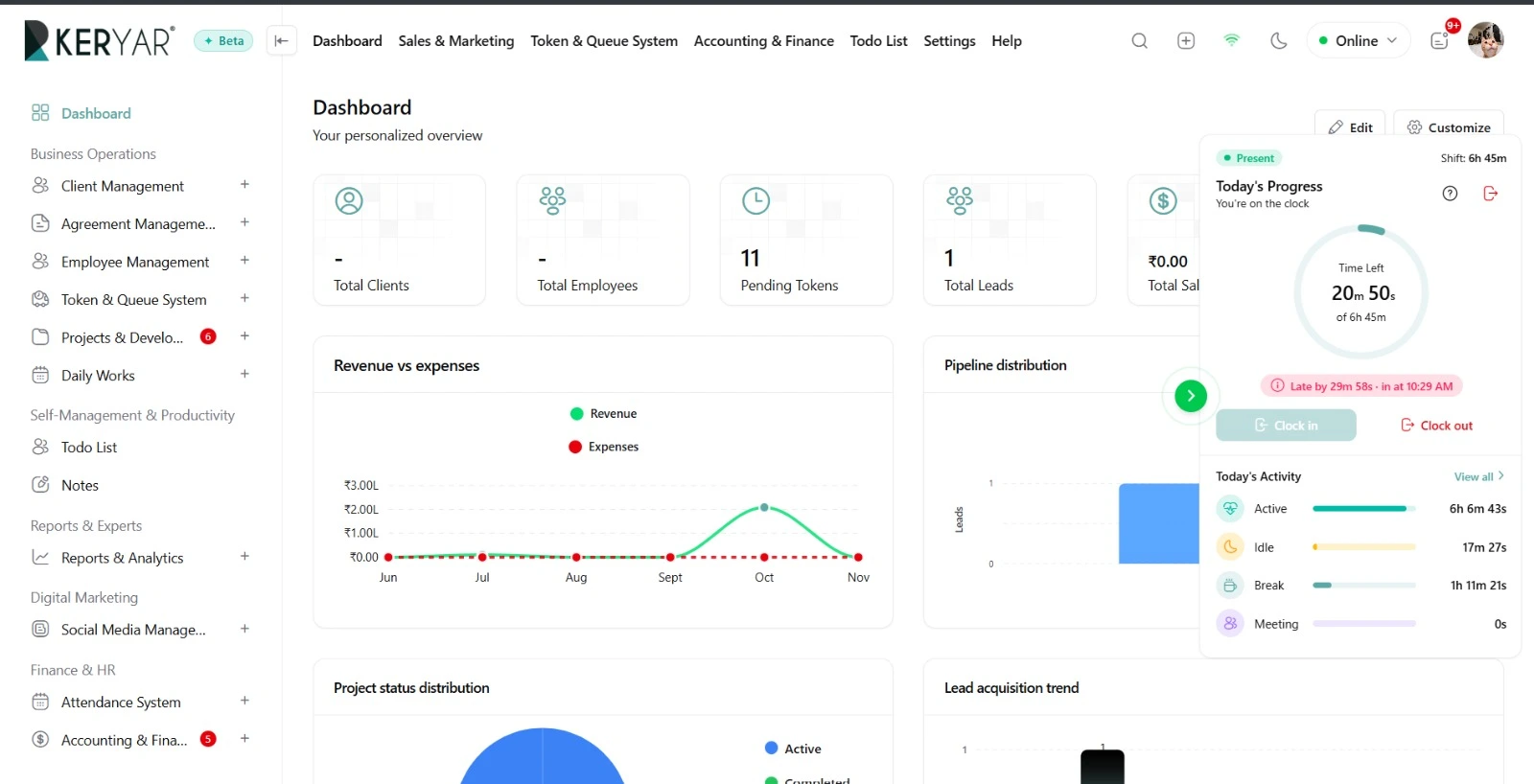
The ZarklyX desktop agent runs quietly on your team’s Windows and Mac computers. It measures active and idle time while they are clocked in and turns it into Daily Attendance, with no timesheets to fill in.
- No keystroke logging
- No camera or microphone
- Starts with the computer
- Keeps itself up to date
From the desktop to Daily Attendance
The agent is part of the Attendance module, not a separate tool. Here is what happens between clock-in and the numbers on your screen.
Employee clocks in
From the tracker drawer in ZarklyX. That starts the agent’s work session for the day.
Tracker drawerThe agent measures
Active and idle time, and the app and window in focus, straight from the employee’s computer.
ActiveIdleAppsAttendance calculates
Break, meeting, overtime and late arrival are worked out, and the day is graded Present, Half Day or Absent.
OvertimeGradingDaily Attendance shows it
Live for every tracked employee, with each person’s full day one click away.
Live
Everything the agent measures
Enough to make attendance accurate, and nothing that has no place in it. Work location stays off until you turn it on.
Active and idle time
Active time counts only up to the last real keyboard or mouse input. Past your idle threshold, the time turns idle.
App and window usage
The app and window in focus, rolled up into a productive, neutral and unproductive split for the day.
Lock, sleep and shutdown
Locking, sleeping and waking are logged. Time asleep counts as idle, and shutting down clocks the employee out.
Mouse-jiggler detection
On Windows, devices that fake mouse movement to look busy are spotted and the time is counted as idle.
Nothing lost offline
If the internet drops, tracked time is held by the agent and sent as soon as the connection is back.
- Optional
Work location
The office network the employee connects from, checked only while they are clocked in.
Idle rules you control
How long before time turns idle, and what happens next. These are the defaults, and each one can be changed in HRMS settings.
- 2 minIdle time startsStops counting as active
- 10 minInactivity pop-upThe agent checks in
- 30 minTeam lead notifiedThe session is flagged
- 60 minAuto clock-outBackdated to last activity
Set up in four steps
Admins switch it on once. Each employee installs the agent the next time they sign in, with nothing to configure.
- Step 1
Turn on tracking
An admin switches on desktop tracking in HRMS settings, chooses who is tracked and sets the idle rules.
- Step 2
Sign in to ZarklyX
The first time a tracked employee signs in, their installer (.exe) downloads automatically.
- Step 3
Run the installer
If Windows shows “Windows protected your PC”, choose More info, then Run anyway, after checking the publisher reads ZarklyX LLC.
- Step 4
Click Continue
The computer links itself to the employee, with no codes to type. The agent starts with Windows from then on.
Shared computer? When a different employee signs in, they can link the agent on that computer to their own account from ZarklyX.
See every day in Daily Attendance
Everything the agent measures lands where HR and managers already look, and employees see their own share of it.
Every tracked employee’s day in one table, updating while they work.
- Present, Absent, Half Day, On Break, Idle Now and Shift Completed cards
- Clock in and out, with a Live badge while someone is working
- Active, break, idle and meeting time, overtime and shift status
- Week and month views
Click any row to open that employee’s full day.
- Active, break, idle, meeting and overtime totals
- Productive, neutral and unproductive time
- A timeline of the day, event by event
- App and window usage for the day
Employees see their own time too, so nothing about their hours is a surprise.
- Their own active, break and idle totals
- Their app usage for the day
- Request a correction if something looks wrong
Present
18
Absent
1
Half Day
1
On Break
2
Idle Now
3
Shift Completed
4
What it records, and what it never does
Employees can see their own time in My Attendance and request a correction if something looks wrong.
What it records
- Active and idle time while clocked in
- The app and window in focus
- Lock, sleep, wake and shutdown events
- The work network, only if your company turns it on
What it never records
- Keystrokes or anything typed
- Camera or microphone
- GPS location
- The contents of files on the computer
Frequently asked questions
Bring real work hours
into your attendance
Turn on desktop tracking in HRMS settings and your team installs the agent the next time they sign in. Their first tracked day shows up in Daily Attendance.